Mini Project: Intro Animation
This tutorial continues from the GSAP Basic. I think it's a good idea to check it out if you haven't read it yet.
Let's recap what we've learned in the basic tutorial and implement a simple web intro animation. You can check the final result here.
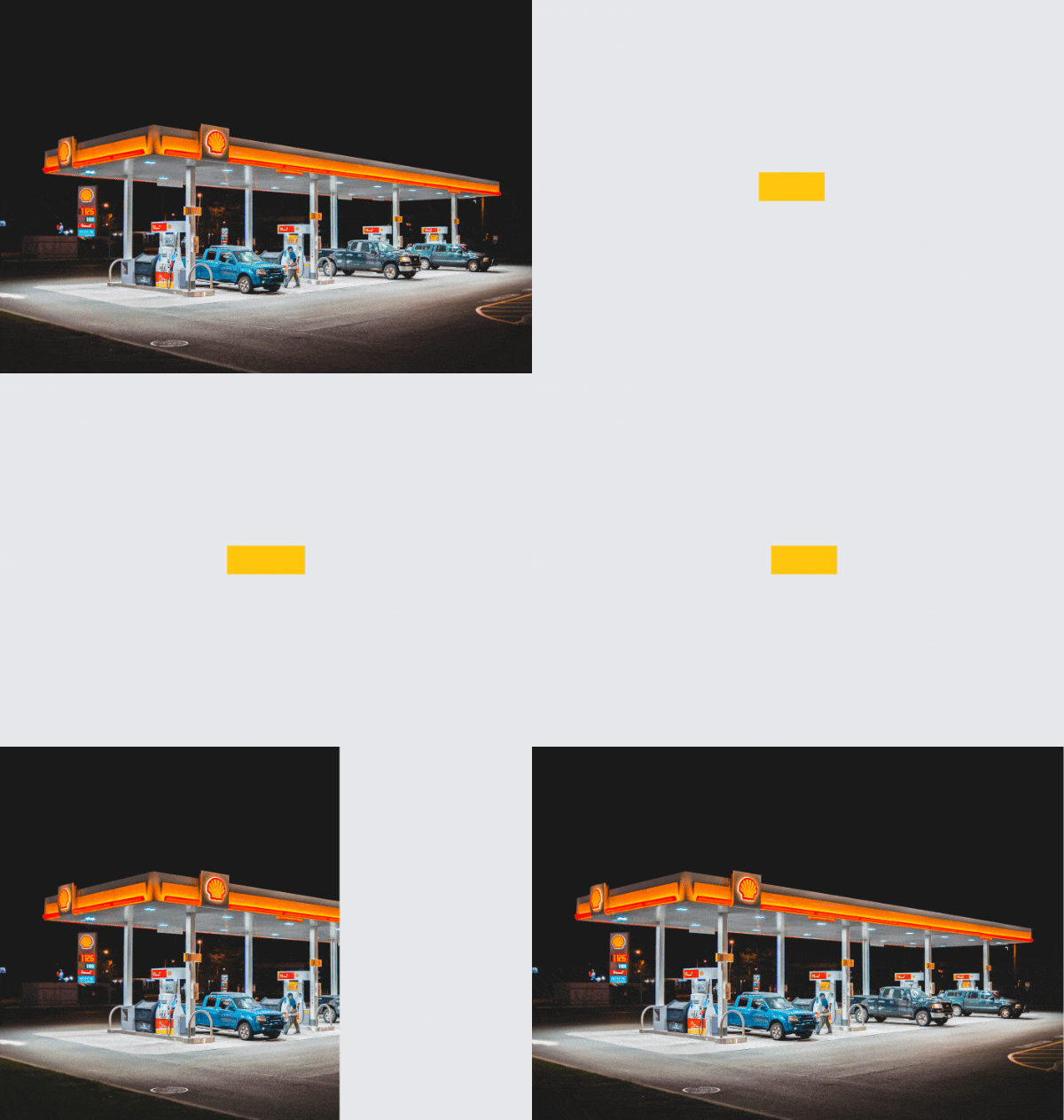
The final result of the intro animation.
Create a new page with container div and useGSAP hook.
app/page.tsx
"use client";
import { useGSAP } from "@gsap/react";
import { useRef } from "react";
import gsap from "gsap";

export default function IntroAnimationPage() {
  const containerRef = useRef<HTMLDivElement>(null);
  useGSAP(() => {}, { scope: containerRef });

  return (
    <div ref={containerRef}></div>
  );
}
Set our container div to fill the entire screen and add a background image to it. Also make it relative which prepares it for overlay elements we'll add next.
app/page.tsx
...
    <div
      ref={containerRef}
      className="relative min-h-screen w-screen bg-cover bg-center"
      style={{
        backgroundImage:
          "url('https://images.unsplash.com/photo-1604282742204-1e7bb6ffbd9f')",
      }}
    ></div>
...
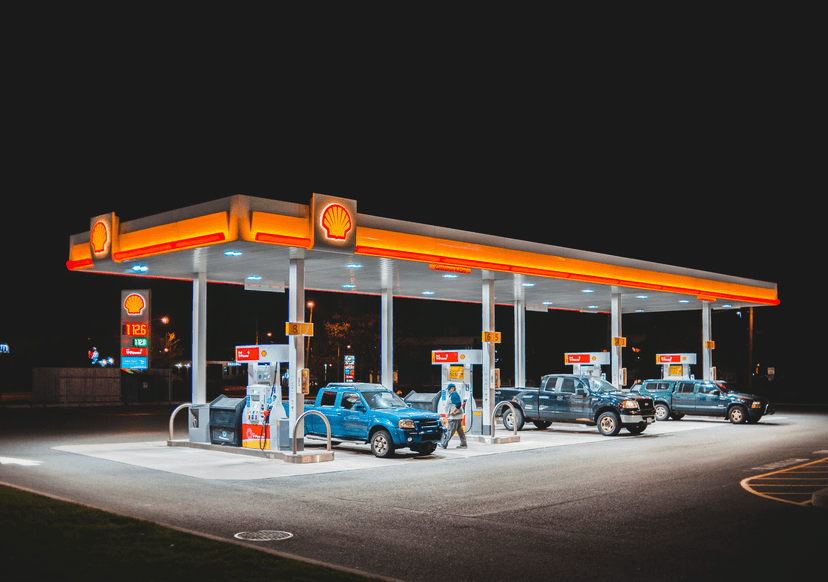
The container div is now filled with the background image and takes up the entire screen.
We'll add an overlay div inside the container div that will be animated to reveal the content of the container.
absolute inset-0 z-10 will make the overlay div fill the entire container and set the z-index to 10.
flex items-center justify-center will center the content that will contain the logo and loading bar.
Add gsap-background-overlay as an id. We'll use this to target the overlay div in our GSAP animation.
app/page.tsx
...
    <div
      ref={containerRef}
      className="relative min-h-screen w-screen bg-cover bg-center"
      style={{
        backgroundImage:
          "url('https://images.unsplash.com/photo-1604282742204-1e7bb6ffbd9f')",
      }}
    >
      <div
        id="gsap-background-overlay"
        className="bg-gray-200 absolute inset-0 z-10 flex items-center justify-center"
      ></div>
    </div>
...
The overlay div is now added and will cover the entire container div.
Add a py-2 px-10 relative div inside the overlay div to contain the logo and loading bar.
Inside the div, add a h1 tag with id="gsap-logo-text" then add the logo text and apply some text styles.
Now we'll add the loading bar with id="gsap-loading-bar" that will cover the logo text using absolute positioning. Try to change the value of the right property to see the progress effect that we will animate later.
app/page.tsx
...
    <div
      id="gsap-background-overlay"
      className="bg-gray-200 absolute inset-0 z-10 flex items-center justify-center"
    >
      <div className="py-2 px-10 relative">
        <h1
          id="gsap-logo-text"
          className="text-[#dd1d22] font-sans text-6xl font-bold"
        >
          Shell
        </h1>
        <div
          id="gsap-loading-bar"
          className="bg-[#fec60b] absolute top-0 bottom-0 left-0 right-full"
          aria-hidden="true"
        ></div>
      </div>
    </div>
...
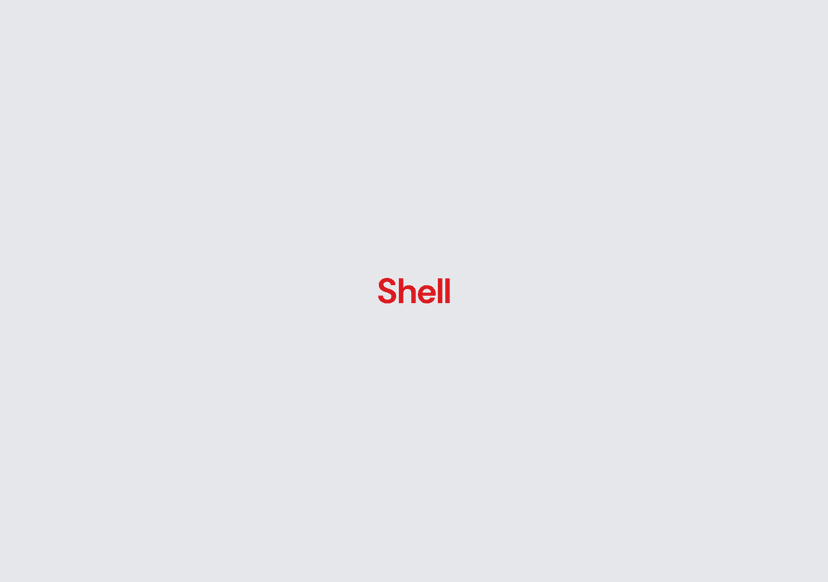
The logo text and loading bar with property right-[0%].

The logo text and loading bar with property right-[100%].
With the HTML structure and styling in place, let's move on to the fun part: GSAP animation.
We'll use the gsap.timeline() because we have multiple animations to sequence. And the first thing we'll animate in the timeline is the right property of the loading bar.
app/page.tsx
...
  const containerRef = useRef<HTMLDivElement>(null);
  useGSAP(
    () => {
      const tl = gsap.timeline();
      tl.to(
        "#gsap-loading-bar",
        {
          right: 0,
          duration: 1,
          ease: "power4.out",
        },
        1 // Position in timeline (1 second delay)
      );
    },
    { scope: containerRef }
  );
...
When we animate the right property of the loading bar, it will cover the logo text.
Set the opacity of the logo text to 0 immediately to hide it after being covered by the loading bar.
Then animate the left property of the loading bar to 100% after the logo text is hidden.
Finally, animate the x property of the background overlay to 100% to reveal the content of the container.
app/page.tsx
...
  const containerRef = useRef<HTMLDivElement>(null);
  useGSAP(
    () => {
      const tl = gsap.timeline();
      tl.to(
        "#gsap-loading-bar",
        {
          right: 0,
          duration: 1,
          ease: "power4.out",
        },
        1 // Position in timeline (1 second delay)
      );

      tl.set("#gsap-logo-text", {
        opacity: 0,
      });

      tl.to("#gsap-loading-bar", {
        left: "100%",
        duration: 1,
        ease: "power4.in",
      });

      tl.to("#gsap-background-overlay", {
        x: "100%",
        duration: 0.75,
        ease: "power4.out",
      });
    },
    { scope: containerRef }
  );
...
Congratulations! You've succesfully create your first web intro animation using GSAP. Of course, you can modify the animation to your liking, try out another easing, or implement your creative ideas to make it more interesting.